Google Chrome on iOS

Google Chrome shipped yesterday for iOS, and you may be wondering if it’s worth giving it a try even though it’s limited in significant ways due to Apple’s App Store policies. There are many reactions that bemoan this fact, pointing out that Chrome for iOS is not even as fast (at some limited functions) as Mobile Safari, and that it’s just a wrapper around Apple’s browser rendering engine. I decided to check it out because I’ve been using Chrome on my computer and want to see how well my bookmarks, open pages, and stored passwords sync.

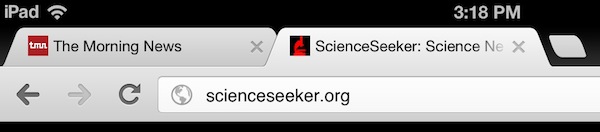
After using it heavily for a day now, I’ve really enjoyed several of its design features, one of which makes it feel even faster than Mobile Safari. Chrome for iOS employs the omnibox, just like in the desktop version, which saves time in and of itself. But I’ve noticed that it seems to pre-cache web pages when I start a search, such that if I choose the first site or word in the list, it loads the page almost instantly. This shows the advantage of the omnibox and, at the same time, indicates some behind-the-scenes work that Google has done to help Chrome feel faster than Mobile Safari. The other design touch I’ve noticed is that Chrome for iOS lets me close a tab that is not the currently-active tab (see image below). This has always annoyed me about Mobile Safari, not being able to ‘x-out’ of an inactive tab.

Tabs in Google Chrome for iOS
note the X even on the inactive tab

The biggest annoyance so far is with accessing bookmarks, as there is no ‘Bookmarks bar’ in Chrome for iOS. This means that I have to tap-tap-tap to get to a bookmark that is only one tap away in Mobile Safari. Then again, it’s not bad to have that vertical scroll space back that would be occupied by the Bookmarks bar. Anyway, I’ve been impressed so far.

First reactions to my new HP 24-inch monitor

I’ve been a notebook computer user since 2002 when I got a decked-out Titanium PowerBook. I’ve tried a couple of external displays to get a little more desktop space, but was never happy enough with them to warrant all the fiddling it required. A few weeks ago I came across a Macworld review of 24-inch displays and, on a whim, decided to try again with the HP ZR2440w. It arrived yesterday and I’ve been using it for a few hours now, so I thought I’d write about a few first impressions while they’re fresh.

First, it’s big (duh). I’ve been on an 11-inch MacBook Air for about six months, and 15-inch screens for years before that, so this is obviously a whole different experience. I love the Air’s display quality, but it is cramped for some things, not surprisingly. The biggest gain so far with the external display is with vertical real estate, which makes scrolling less of a full-time job than it can be on the Air. It’s also nice to have two full-width windows open at a time, side-by-side.

I’m connecting the HP to the Air via an HDMI adapter which also carries audio. This display does not have speakers, but it does have an audio jack that passes the signal along. The only trick was to select the display to receive audio output in System Preferences on my Mac. The only other connection (besides power) I need to make to the Air is a USB cable when I need it. The display is acting more or less as a hub, then, for audio and USB peripherals, similar (though not with the single-cable elegance) to the Apple Thunderbolt Display. Apple’s display is bigger, supplies power via a MagSafe connector, has built-in speakers and a camera, and a Thunderbolt port. All of those additional features might be worth an additional $600 for some, but I decided I could do without them.

When I first plugged the display in, I found the colors to be too something, which was probably just different than what I was used to. Nonetheless, I ran through the color calibration and toned the something down to a more familiar level. The other annoyance was with the huge bar code sticker wrapped around the end of the USB cable. It was just close enough to the display that I could see it peeking out and found it distracting, so I cut it off and it left a sticky adhesive goo behind. Sure, I’m a freak for noticing, but what use does the customer have for an inventory sticker in plain sight? I suppose if that’s the worst thing I have to say about this display over its lifetime it’s money well spent — here’s to hoping it is so.

An experiment with Pearson’s OpenClass ends badly

I’ve written several times before about my LMS anxiety disorder, and this summer it lead me to experiment with yet another LMS, OpenClass. This one is built by the textbook publishing house Pearson, and has some integration with Google Apps. OWU is a Google Apps for Education campus, so I thought this would make certain aspects more familiar to the students.

I really only rely on the LMS for two things: a private gradebook and the ability to accept electronic assignments. I created a new course shell in OpenClass and used their form-based tool to create a syllabus. One nice thing about OpenClass is the (relative) simplicity of organizational tools. I didn’t struggle with the nagging sense of “Where should I put this thing” in it like I do with Blackboard. There doesn’t appear to be a way to create pages of content in OpenClass like there is in other LMS tools, there is just an ‘Announcement’ feature that posts short messages to the main page. Unfortunately, the character limit for these posts is too small to make it useful for anything other than to point someplace else. This is where the integration with Google Apps comes in – when you do need to share more than a few words, you just create a Google Doc and it can be shared automatically with the appropriate users by virtue of their enrollment in the course.

The issue of enrollment brings me to my first complaint about OpenClass, at least for my situation: I couldn’t add students to my course directly, but had to rely on our Technology folks to do it. I’m sure this issue would go away if OWU adopts OpenClass and we build the integrations necessary with our enrollment system, but it was still a pain to make sure my roster matched the OpenClass roster. Once students were enrolled in the class though, they could access everything already shared with the class.

Electronic submissions

One of the two key functions I need in an LMS is the ability to accept student work, grade it, and return comments. This is one area where Canvas really shines, and I was eager to see how OpenClass handled it. The short answer is, not well. Students experienced all kinds of problems submitting their work, mostly related to the lack of any feedback on their end about whether the submission worked. As a result, they emailed their files to me, too. I hate this so hard. But they were justified in doing it, because I didn’t end up with many duplicate submissions, which means OpenClass just failed silently for them.

For those students whose work was uploaded successfully to OpenClass, there were two more problems. There does not appear to be any way to view a Word doc in place, which means I had to download each file and open it in Word to read it. Canvas really spoiled me on this count – I could fly through student writing assignments right from my iPad because their built-in viewer was so good. The second huge problem is that the student submission is not connected to a grade entry form, only a form to comment and ‘return’ the work to the student. So I had to keep one tab open to download the assignment and another with the gradebook loaded to enter scores. This is a far cry from the ease of grading in Canvas, and not even up to par with Blackboard.

Gradebook

The other key function I need in an LMS is the gradebook, and OpenClass disappointed me here, too. One minor complaint is that assignments don’t seem to have a way to show an average score. Another more significant weakness is that grade entry does not have a spreadsheet-like mode where I can arrow through the column to a student’s entry for an assignment. When you click on an entry for a student, a modal dialog window opens and floats over the page. After entering a score, you have to use the mouse to click OK, as pressing Return won’t do it. This gets old for data entry really fast. But not nearly as fast as losing all the quiz scores from your gradebook.

Wait, what?

That’s right, lost scores. I entered scores for quizzes one day, came back the next day to score some writing submissions, and the quiz scores were missing for all but 3 students. Obviously this is a whole different category of bad. I would’ve thought that some software engineer somewhere had the job of ensuring that, even if everything else fails, save the gradebook data. Guess not. So it was at this point that I jumped ship and moved everything into Blackboard for the rest of the term. And sheepishly requested that my students return their most recent quiz to me for grade re-entry.

Final thoughts

OpenClass is certainly garnering lots of attention in ed tech circles (it says ‘open’ right in the name, so it must be good, right?), so I was excited to try it. For obvious reasons, I found it less than acceptable. Even without the loss of data though, I wasn’t all that impressed and probably wouldn’t recommend it to a colleague unless they already made heavy use of Google Docs, with which it stands out. I’m still optimistic about progress in LMS development thanks to the growing competition, and that’s a great thing for everyone.
iBooks, HyperCard, and creating beautiful things

Back in January I wrote about using iBooks Author to create a companion “textbook” for a course I teach regularly. The term textbook is in quotes because I don’t really think of this as a true textbook, but something new – smaller, more focused, less encyclopedic, targeted to my class. I somehow managed to (mostly) keep up with writing a summary of each topic we discussed as the semester progressed, publishing them on the web for students to use as study aids. At the end of the term they told me these overviews were very helpful, which I found satisfying. My plan was to compile these into a single stand-alone iBook for next year’s class, and probably also produce an ePub and/or PDF.

Then something awful happened. I downloaded an iBook called Paperless by David Sparks, of MacSparky fame, and it made me realize I’m doing it wrong.

Paperless is so beautiful. Sparks has paid so much attention to every single detail that he has succeeded in setting the bar incredibly high for self-publishing in this new form. This would be easy to dismiss as the work of a full-time freelance writer/publisher, but Sparks has a full-time job – he’s done all this in his spare time. You would never know this, though, given the exquisite care he’s taken to create something that communicates his points powerfully and effectively.

Last week I came across this article about HyperCard that reminded me of my time as a HyperCard enthusiast when I was a kid, experimenting with creating adventure stories and encyclopedia-like reference works, complete with hyperlinked text. The obvious descendent of HyperCard of course is the web itself, and it far exceeds the possibilities of the original HyperCard concept in many ways: it’s distributed, cross-platform, and world-wide, to name a few. But I can also see iBooks as a kind of spiritual descendant of HyperCard in that the combination of the iPad + iBooks app acts as a viewer for a package that includes rich media, images, interactive elements, and text. This fulfills the promise of HyperCard in a way even the web doesn’t because everything is bundled into a single, portable, stand-alone package. It has no external dependencies on web servers or even network access, which is, unfortunately, still questionable in many schools.

Thinking about iBooks as the descendant of HyperCard is a powerful motivator for me personally. At the same time, seeing an example like the Paperless book opened my eyes to the possibility of using iBooks Author to make a beautiful thing. There is a real payoff to investing in the capabilities of the platform instead of just treating it like a digital replica of a previous form.

Using the Marked app in class

While teaching class today, I discovered another great use for one of my favorite Mac apps, Marked. What is Marked, you ask? It is a way to preview plain text files formatted with the lightweight text markup syntax called Markdown. Markdown lets you keep all of your writing in plain text but still apply formatting like emphasis and bold text. It really shines in writing destined for the web by making the text much easier to write and read by removing all the normal HTML cruft from the file, replacing them with an easy-to-learn shorthand markup that accomplishes the same thing.

Even though text written with Markdown is easy to read, sometimes you want to make sure everything looks and works right before publishing it, which is where something like Marked comes in. Even though several of the editors I use include a preview mode, I prefer using Marked because of its rich set of features and output options. I typically write in iA Writer or Byword and open the file in Marked as I write to preview links and formatting as I go. Then I can either output it from Marked as a PDF or copy/paste the HTML to publish to the web.

Before heading to class this morning, I wrote a list of questions for discussion and opened them in Marked on the screen of the projector to share with the class and guide discussion. That’s when it occurred to me that as the class discussed the questions, I could take notes in my original text file on my screen, and Marked would auto-update with the new bullet points on the projected screen for the class to see. After class, I copied the text from Marked in rich text format and pasted it into a new Google doc for the class to use. Nice.

First steps with the lab TV

Last week saw the installation of a large LCD monitor in my teaching lab, and now that finals and grading are winding down and research is gearing up, it’s time to start tinkering with how best to use this beast. In the interest of sharing and recording the various approaches I try, I’ll be blogging it all right here using the “LCDelight” tag. Below is a recap of my first week with the setup, including a description of what has worked well and what has not.

LCD video monitor mounted in my teaching lab

The first issue came up while the guys were mounting the panel to the wall bracket. They had the bracket centered on the monitor such that it would hang at a good height, but this would not allow the VGA cable to fit because of a cross-support on the bracket. The guys made an adjustment and all was well – the monitor hangs just a bit lower, but still fine.

Once they hung it on the wall, I plugged in the AppleTV and… no joy, or at least no networking. It said something to the effect that the AppleTV does not support “enterprise security”, meaning it could not log on to our fancy campus wi-fi network. Big problem. So the short-term solution I’ve come up with is to plug in an old AirPort Express and create a rogue wireless network for the AppleTV and my iPad when I’m in the lab (shh, don’t tell Information Services). This works perfectly, but means I need to manually change wireless networks when I want to AirPlay to the TV – not a big deal, but not 100% ideal.

As far as AirPlay goes, it is all that and a bag of chips. Really. A simple flick in multi-tasking mode on the iPad and a tap to switch it on, and you’re suddenly sharing any app on your iPad to the big screen. This is one of those features that seems so natural and obvious once you use it, you wonder how you could have gone without it, or how you could go back to being tethered with a cable.

Even though I don’t imagine myself presenting a lot of slides in the lab, I wanted to try Keynote with the iPad and TV to see how it looks and works. There is a choice of presentation modes in a Keynote slide show, including a presenter mode that displays notes and the next slide on the iPad while keeping the output on the TV clean. I was surprised and disappointed that I can’t present a slide show with a resolution native to the TV (1920 x 1080). I tried to create one on my Mac and open it on the iPad, but Keynote on the iPad complains and resamples it to fit its own screen.

Next up, I want to find a way to cycle through a series of informational slides without needing to tether my iPad or a computer, so that when students are first coming in to the lab, they can see what to start working on. I’m thinking I might create a Flickr lab account for this, that is available on the AppleTV without the need for another device to drive it.

Planning for AppleTV in the Lab

Ever since I heard that the next version of the Mac OS will feature support for AirPlay, I’ve been working on plans to use it in my teaching lab. Here’s what I have in process in terms of nuts and bolts:

  • a large flat panel monitor mounted in the front corner of the lab
  • an AppleTV connected to the monitor via HDMI cable
  • several Macs and iPads to serve as interfaces to drive the monitor

As of today I’m just waiting on our building support staff to mount the monitor and I’ll be off and experimenting. With four students in the lab for the summer, I’m sure it will get a proper break-in. I hope to convince them to try using it for research and not just streaming shows on Netflix, but we’ll see how that goes.

My plans for it include shooting and editing several short videos on common techniques we use in my lab. I could have these available for streaming on the monitor at the drop of a hat, so if a student asks how to make media or sterilize seeds or run a gel, they can refer to a video clip to refresh their memory. I also plan to have a collection of graphics that I can use for reference during pre-lab discussions. I expect to experiment with how best to store, organize, and stream these reference materials, as I’m not sure yet what will be easiest to use in the moment as well as for students to use on their own. I’m also eager to experiment with using apps live and projected on the big screen, but I’ll wait to discuss those until I’ve had a chance to play with my setup.

Canvas is a Delightful Departure

As I’ve shared previously, I’m restless with the technology I use for teaching, especially the LMS. Rather than only complain about it, I choose to experiment with other tools in the hope that I’ll find a better fit for my style. This term I’m experimenting with Canvas, the latest darling of the educational tech scene, and I’ve found its excellent reputation to be mostly well-deserved.

For starters, the fact that I can use it to host an actual class is the result of the fact that Canvas is a cloud-based LMS that is free for individual faculty members. The only practical limitations that I’ve found include a cap on the storage space per class and the need to upload my own roster and ask students to create accounts. Neither of these have been big points of pain for me, but if you need to host many large presentation files you may run out of storage space or have to rotate files off throughout the semester.

In the big picture, these are low costs to pay for the chance to use an LMS with an elegant user interface and straightforward usability features. If you are of the opinion that “design” is just how something looks, I challenge you to compare Canvas to the other big LMS out there. You will conclude that design is how something works, it’s made that well.

That said, there are still unintuitive aspects to its design. For example, my class just completed peer reviews of a writing assignment. These reviews were a cinch to assign, and I assumed the students would see their assignment in their ‘Recent Activity’ stream. But to get their assignment, they had to go to the assignment page and look for it, something that never occurred to any of them. Thirteen email replies later and lots of links to the help section, the problem was solved, but still, it might be nice if they could add this to the activity stream.

I still don’t want to rely on an LMS completely, at least in part for philosophical reasons, I’ll admit. But Canvas has been great for what I’ve used it to do, and it’s made it dead simple to do paperless grading (their Speedgrader iPad app is excellent). I don’t feel like I have to feed it my whole course, to fill in all the spaces with content. It works for what I want it to do, and stays out of my face for the rest. That’s pretty good, I’d say.

iA Writer Feels Like the Future

I tweeted earlier today that I was smitten with a new pair of apps, both called iA Writer. One is for the Mac and the other for iOS, and both are awesome on their own merits. They really shine, though, when used in parallel with iCloud.

special keyboard in iA WriterI’ve been doing significant writing on my iPad for the better part of a year and a half, and I’ve used a number of apps to do it. The first thing I noticed with the iOS version of Writer is the souped-up keyboard, which adds a single strip of keys and navigation buttons that makes writing and editing easier. The navigation keys include left and right arrows to move the cursor precisely and, on the iPad, keys that move the cursor one word at a time through your text. Both of these are huge time savers over the cursor placement loop. The other additional keys are for inserting commonly used punctuation, and having these on the primary keyboard is also a nice convenience.

The second feature that struck me is how seamless it is to work on a document across devices. To put it simply, you don’t have to understand or even think about file management, it just works. I can start writing something on the iPad and it’s just there on the Mac, where I can edit or add to it, and when I open it again on the iPad it’s all just there. Seamless. Behind the scenes the apps are both using my iCloud account to store the “master copy” of the file – what Steve Jobs meant when he said, “the truth is in the cloud.” There is no dragging the file in from the desktop, no pushing it out from the iOS app, it’s just there on both. This is awesome, and it demonstrates a different way to use “the cloud” from an approach like Google’s, where your documents are in the cloud and that’s where you interact with them. In the Apple cloud approach, I get to use a refined, custom, specific app to interact with my document, an app that is purpose-built for writing.

That brings me to my last observation, one that many others have commented on, which is the austerity of the editing experience in iA Writer. A lot of people wrote about the “focus mode” gimmick when these first shipped, but that’s not even the boldest design feature to my mind. These apps get out of my way and let me focus on writing like no others I have tried. I can’t tweak the fonts, the page size, the colors, anything. That’s a good thing – it is what it is, take it or leave it. Speaking of writing, it’s time I got back to work, but I just wanted to pass along how nice this pair of apps works together – feels like the future.

DRM on e-books should go

This is seeming more and more like the only reasonable next move for publishers:

By foolishly insisting on DRM, and then selling to Amazon on a wholesale basis, the publishers handed Amazon a monopoly on their customers—and thereby empowered a predatory monopsony. […] If the major publishers switch to selling ebooks without DRM, then they can enable customers to buy books from a variety of outlets and move away from the walled garden of the Kindle store.

Unfortunately, it will probably take a good five years for them to realize that the basis of power for Amazon is the closed format insisted upon by the publishers themselves. The other wonderful byproduct of eliminating DRM would be the ability to share an e-book with a friend, something that is not possible now.